Table of Contents
- What Is the Common App Mobile Application
- Getting Started with the Common App Mobile Application
- Common App Mobile App Features
- Step by Step Tutorial for Completing Your Application
- Advanced Mobile App Tips and Tricks
- Common App Mobile App Walkthrough for Specific Functions
- Common App Mobile App Support and Troubleshooting
- Common App Mobile App Instructions for Special Circumstances
- Common App Mobile App Tips for Success
- Conclusion Mastering the Common App Mobile Experience
What Is the Common App Mobile Application
The Common App mobile application is basically the smartphone version of the Common Application that over 900 colleges and universities worldwide use. It's a game-changer for students who want to manage their college applications without being tied to a computer.
I've found that this mobile tool gives you the freedom to check deadlines, track what you've submitted, and even work on parts of your application while you're on the bus or waiting for practice to start. It's perfect for today's on-the-go lifestyle.
The app has really evolved with the 2023 updates. You'll notice a much cleaner interface, better notifications (that actually make sense!), and it works seamlessly with the desktop version. So if you start something on your laptop, you can pick up right where you left off on your phone.
With over a million students using Common App each year to submit more than 6 million applications, this mobile version is becoming essential, especially for Gen Z applicants who practically live on their phones. The app represents how college applications are changing with the times – becoming more accessible and fitting into your life rather than the other way around.
For a streamlined overview of how the Common App works (across mobile and web), see our expert Common App guide.
Getting Started with the Common App Mobile Application
Getting your Common App mobile journey started is pretty straightforward. First, you'll need to download the app from either the Apple App Store if you're an iPhone user or Google Play Store if you're on Android. Make sure your device meets the requirements – iOS 12.0+ for Apple or Android 7.0+ for Android phones. The app takes up about 50MB of space, so you might need to clear some photos if you're running low on storage.
Once you've got it installed, creating your account is super simple. Just open the app and tap "Create Account" if you're new to the Common App world. You'll need to enter your email, create a password, and provide some basic info about yourself. Don't forget to verify your email through the confirmation link they'll send you – this is a must before moving forward. Then complete your initial profile with your name, birthday, and address details.
One thing I really appreciate is that your login credentials work across all platforms. So whether you're on your phone, tablet, or computer, you use the same username and password, which makes switching between devices totally painless.
After logging in, you'll land on the dashboard – think of this as your command center for the whole application process. It gives you a quick snapshot of how far along you are, shows upcoming deadlines (which can be a real lifesaver when you're juggling multiple schools), and alerts you to any important updates you need to know about.
The app's design is pretty intuitive with a bottom navigation bar featuring icons for Dashboard, Colleges, Application, and Profile. This makes jumping between different sections super easy – just one tap and you're there. No more digging through complicated menus or getting lost in the application.
If you want a complete picture of all the steps you'll go through while preparing and submitting your application, check out our comprehensive College Application Guide for Successful University Admissions.
https://www.nerdwallet.com/article/loans/student-loans/common-application
Common App Mobile App Features

The Common App mobile app packs some seriously helpful features that make the college application process much more manageable. Let's talk about the college search functionality – it's honestly one of my favorite parts. You can search for schools by name, location, size, or specific programs you're interested in. The filters are super handy when you want to narrow things down based on application requirements, deadlines, or acceptance rates.
When you find schools you like, just save them to your "My Colleges" list for easy access later. Each college profile gives you tons of useful info – admission stats, campus details, and financial aid information. You're working with the same database of 900+ institutions that's available on the desktop version, so you're not missing out on any options while browsing on your phone.
The app's search has gotten smarter with recent updates too. It now gives you more personalized recommendations based on your profile info and previous searches, which can help you discover schools that might be perfect matches you wouldn't have found otherwise.
The Application Tracker feature is a real game-changer when you're applying to multiple colleges. You get visual progress indicators that show exactly how complete each application is, color-coded deadline reminders that help you prioritize your time, notification alerts for approaching deadlines, and confirmation tracking for each submission. The latest version has improved these visual cues to make them even more helpful in preventing last-minute application scrambles.
For more tools to stay on top of your timeline and deadlines, explore our College Application Timeline Guide for a Successful Admissions Journey.
Document management is another area where the mobile app really shines. You can take photos of physical documents and upload them instantly – super useful for those moments when your counselor hands you something important between classes. You can also pull files directly from Google Drive or Dropbox, review what you've already uploaded, and track the status of documents from your recommenders and schools. This feature is a lifesaver for handling supplementary materials or last-minute additions when you're away from your computer.
Looking for inspiration or strategy? See Successful College Application Examples And Strategies That Work for insights drawn from real application journeys.
Step by Step Tutorial for Completing Your Application
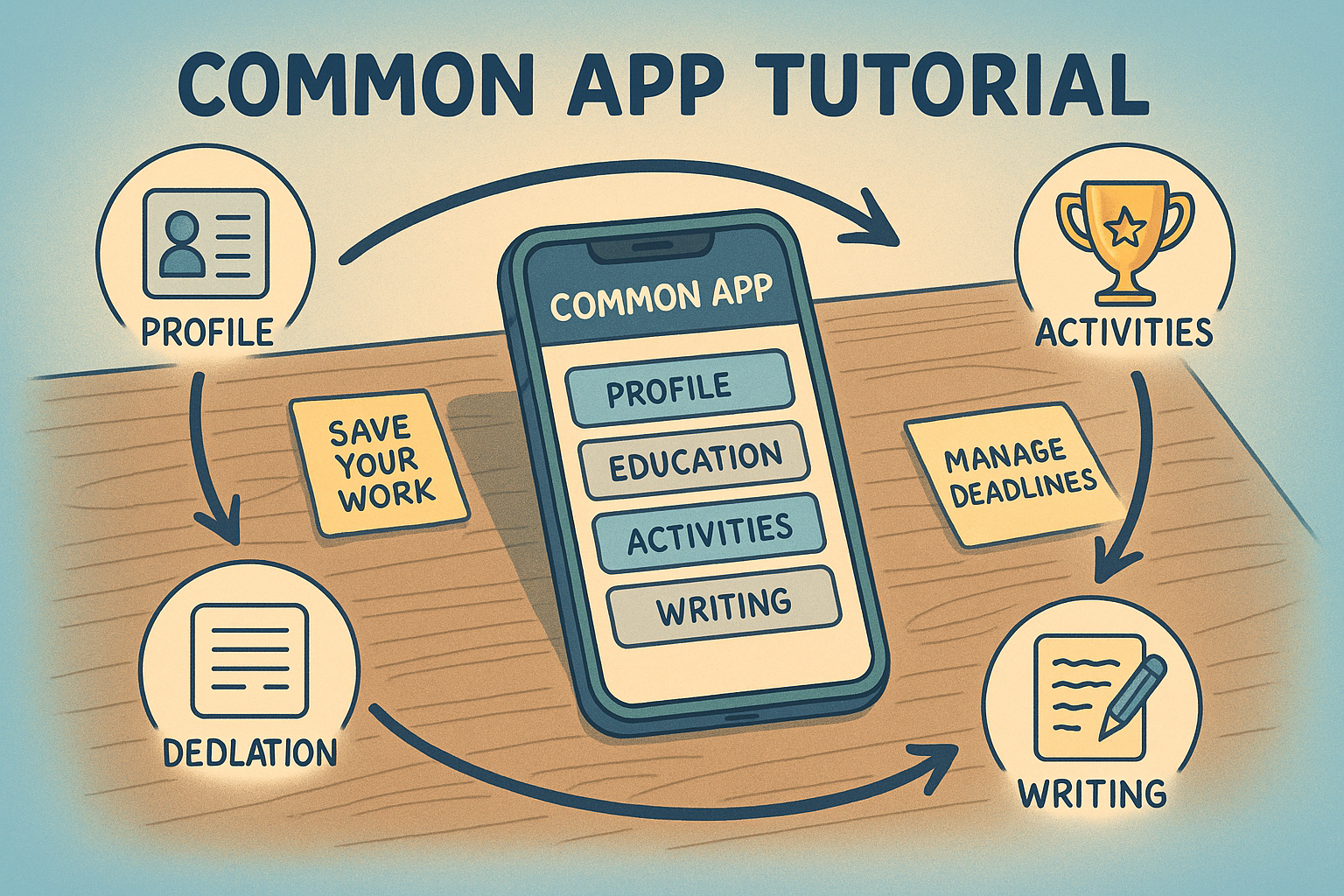
Let's walk through completing your application section by section using the mobile app. Starting with the Personal Information section – this forms the foundation of your Common App profile. To access it, just tap the "Profile" tab in the bottom navigation and then select "Personal Information." You'll need to fill in your name, contact details, demographics, and citizenship info. The app breaks this into manageable chunks with clear progress indicators, which makes it feel way less overwhelming.
One tip I've learned the hard way: while the app automatically saves as you move between fields, it's still smart to manually save after completing each subsection. This prevents losing your work if your connection drops unexpectedly.
For your Academic History, head to the Application tab and select "Education." Here you'll enter information about your current high school, any previous schools, your courses and grades, and standardized test scores if applicable. The mobile interface includes helpful tooltips that explain exactly what information is needed and in what format – super helpful if you're a first-time applicant feeling a bit lost.
If you want to be sure your application stays perfectly on schedule, check our expert guide: College Application Deadlines Explained for a Successful Admissions Journey.
The Activities section is where you showcase your extracurricular involvement. Navigate to the "Activities" section, tap "Add Activity," select the type from the dropdown menu, and enter details about your position, time commitment, and a brief description. You can prioritize activities by dragging them into your preferred order. Just remember that descriptions are limited to 150 characters, so you'll need to be concise yet impactful in highlighting your contributions and achievements. The Honors section follows the same pattern for entering academic distinctions and awards.
If you’d like practical essay help tailored for the Common App, don’t miss our Common App Essay Examples To Inspire Your College Application Success and Help With Common App Essay To Make Your Application Stand Out articles.
For Essay Management, access the "Writing" section from the Application tab. Here you can view the current year's essay prompts, draft responses directly in the app or copy from another source, save drafts for later refinement, and track your word count. The app includes a distraction-free writing mode that maximizes screen space, though personally, I find it easier to draft in another app and then transfer completed essays to Common App.
You can also access the latest prompts and pro strategies directly with our Common App Essay Prompts Expert Guide.
https://www.snhu.edu/about-us/newsroom/education/what-is-the-common-app
Advanced Mobile App Tips and Tricks
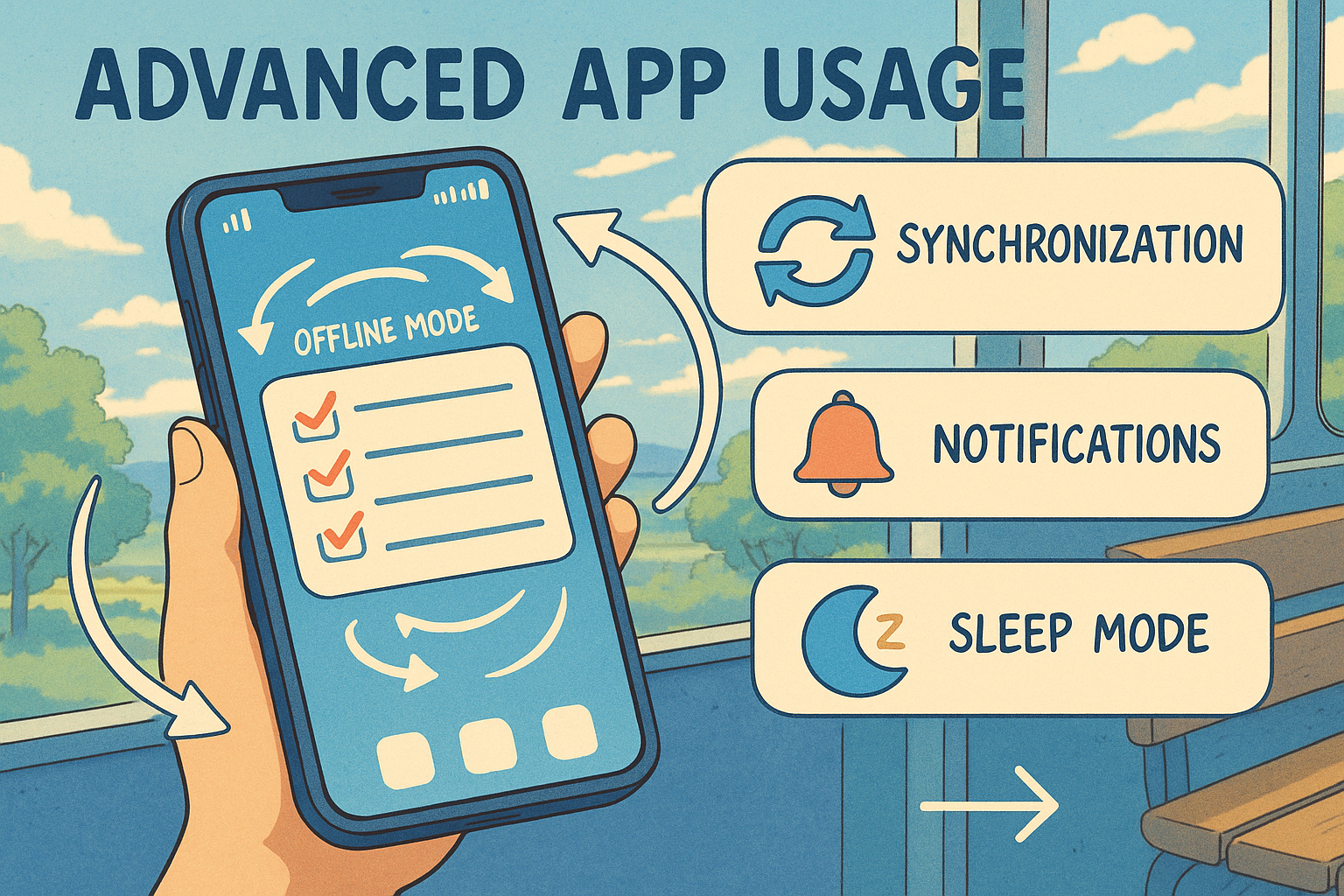
One of the coolest things about the Common App mobile app is its offline capabilities. You can actually view previously loaded information without an internet connection, draft essays offline that will sync when you're back online, review college info you've already accessed, and complete application sections that will update once you reconnect. This feature is a game-changer if you have a limited data plan or spotty service in your area.
To make the most of offline mode, be sure to fully load any sections you plan to work on before losing connection. And remember, you'll always need internet to submit your final applications – the app can't do that offline.
If you're looking for more strategies on how to use the Common App mobile application to its full potential, including navigation and submission tips, see our practical guide to mastering the Common App mobile app.
Managing notifications effectively can save your sanity during application season. Access the app settings through your profile, navigate to "Notification Preferences," and customize which alerts you receive and how you receive them – push notifications, email, or both. You can even set quiet hours so you're not getting pinged about your applications during school or when you're trying to sleep.
I've found it works best to enable push notifications for truly urgent things like submission deadlines and recommendation requests, while setting less time-sensitive updates to come through as daily or weekly email digests. This way, you stay informed without feeling constantly bombarded.
The multi-device synchronization is another feature that makes the Common App system so user-friendly. Changes made on your phone instantly show up on your computer and vice versa. Your document uploads are accessible from any device, application progress is consistently tracked across platforms, and you can manage notifications to avoid getting the same alerts multiple times.
This seamless synchronization means you can work on your application wherever and whenever works best for you. Maybe you prefer drafting essays on your computer but reviewing and making quick edits on your phone between classes or while waiting for the bus. The flexibility is yours to use however it fits your life.
https://www.salliemae.com/college-planning/college-applications/common-application/
Common App Mobile App Walkthrough for Specific Functions
Let's dive into some specific functions you'll need to handle through the app. Managing recommenders is something you can do entirely from your phone. Navigate to the "Recommenders and FERPA" section, decide whether to waive your right to view recommendations (most college advisors suggest waiving this right), and add your recommenders' information including their name, title, email, and phone number. You can select which colleges should receive each recommendation and track both invitation status and submission confirmation.
The app automatically sends reminders to recommenders as deadlines approach, but I've found it's always good to personally follow up with a thank you and gentle reminder. People get busy, and your application is naturally more important to you than to them!
Many colleges require additional information beyond the standard Common App, and handling these supplements is straightforward on mobile. Select a specific college from your "My Colleges" list, navigate to the "Questions" section for that school, and complete any additional writing supplements or questionnaires. You'll need to save progress for each supplement separately.
For extra motivation and concrete examples of how successful applications manage these details, visit our College Admission Case Studies archive.
The mobile interface clearly shows which supplements are required versus optional, helping you focus your energy where it matters most. Pay special attention to these college-specific questions – they're often where schools look for demonstrated interest, so take your time with these responses even when you're completing them on your phone.
If you're eligible for fee waivers, the mobile app makes this process simple too. Navigate to the "Profile" section, select "Common App Fee Waiver" under Financial Aid resources, and indicate which eligibility criteria apply to your situation. Your counselor will be notified to confirm your eligibility. The app also makes it easy to see which of your selected schools accept the Common App fee waiver, potentially saving you hundreds of dollars in application fees.
Common App Mobile App Walkthrough for Specific Functions
| Function | Mobile App Path | Key Features |
|---|---|---|
| Managing Recommenders | Recommenders and FERPA section | Add recommender info, track status, select colleges |
| College-Specific Questions | My Colleges → Questions | Complete supplements, see required vs. optional items |
| Fee Waiver Requests | Profile → Common App Fee Waiver | Indicate eligibility, counselor verification |
Table outlining mobile app features for recommenders, supplements, and fee waivers.
Common App Mobile App Support and Troubleshooting
The Common App mobile application comes with plenty of built-in help resources for when you get stuck. You'll find contextual help buttons throughout the app that provide guidance specific to whatever section you're working on. There's also a comprehensive FAQ section organized by topic, video tutorials that walk you through key functions step-by-step, and a glossary that explains unfamiliar terms and concepts.
What's really helpful is that these resources are accessible offline once they've been loaded, so you can still get help even without an internet connection. This came in handy for me when I was working on my application during a long car ride through areas with spotty service.
If you run into issues that the in-app resources can't solve, you've got several technical support options. You can use the "Contact Us" feature in the app settings, email support directly at [email protected], call their support hotline during business hours, or check their social media channels for system status updates. Just be aware that during peak application seasons (October-January), response times might be longer than the typical 24-48 hours for email inquiries.
Some technical issues pop up more frequently than others. If your app crashes during document upload, check that your document meets the size requirements (usually under 5MB) and is in an accepted format like PDF, JPG, or PNG. Try uploading smaller files or compressing larger ones if needed.
When changes aren't syncing between devices, try force closing the app, make sure you have a stable internet connection, and reopen. If problems continue, logging out completely and logging back in often resolves synchronization issues.
If you're unable to submit your application, first verify that all required fields are completed – the app will highlight missing information. Also check your internet connection and consider trying again during off-peak hours when server load is lower.
For even more troubleshooting and feature-specific guidance, explore our in-depth Common App mobile app tutorial.
Common App Mobile App Support and Troubleshooting
| Common Issue | Troubleshooting Steps |
|---|---|
| App crashes during uploads | Check file size (<5MB) and format (PDF/JPG/PNG), compress if needed |
| Changes not syncing | Force close app, check internet connection, log out and back in |
| Unable to submit | Verify all required fields are complete, try during off-peak hours |
Table listing frequent Common App mobile application technical problems and how to resolve them.
Common App Mobile App Instructions for Special Circumstances
If you're an international student, the Common App mobile application has some specific features designed for you. The app supports international address formats and phone numbers, provides document upload capabilities for visa and passport information, includes currency conversion tools for financial information, and offers additional fields for English proficiency test scores. You'll also find country-specific tooltips that help navigate requirements unique to your situation.
For a full timeline and checklist for the international college application process (including standardized test dates and visa steps), refer to our College Application Timeline for International Students.
Transfer students have their own dedicated resources in the mobile app. You'll need to select "Transfer" as your applicant type during account creation. From there, you can access transfer-specific essay prompts and questions, enter your previous college coursework and grades, and upload college transcripts directly from your phone. The transfer application includes different sections than the first-year application, and the mobile interface adapts to show only relevant fields and requirements for your situation.
Take an even deeper dive into the process with our Transfer Application Success Guide.
For students with disabilities, the Common App mobile application includes several accessibility features and accommodations. The app is compatible with screen readers for visually impaired users, offers text size adjustment options, provides high contrast display settings, and allows for extended time accommodations for certain timed elements. Additionally, there are fields where you can voluntarily disclose disabilities if you choose to do so, and resources for connecting with disability services at the institutions you're applying to.
These specialized features make the application process more accessible and tailored to your specific needs, regardless of your background or circumstances. The Common App team has clearly put thought into making sure everyone has the tools they need to put their best foot forward in the application process.
Common App Mobile App Instructions for Special Circumstances
| Special Circumstance | Mobile App Features |
|---|---|
| International Students | International address formats, visa document uploads, currency conversion tools, English proficiency test fields |
| Transfer Students | Transfer-specific prompts, college coursework entry, transcript uploads |
| Students with Disabilities | Screen reader compatibility, text size adjustment, high contrast settings, voluntary disclosure options |
Table describing mobile app features for international, transfer, and disabled students.
Common App Mobile App Tips for Success
The mobile platform really shines when it comes to organizing your application timeline. Use the dashboard calendar view to visualize all your upcoming deadlines at once. I recommend setting personal milestone targets that come before the official deadlines – maybe aim to finish each application a week early. You can create custom reminders for specific tasks and even color-code colleges by application type (Early Decision, Regular Decision, etc.).
Establishing a timeline with buffer periods before actual deadlines has saved me from so many last-minute panics. You know how technical issues always seem to happen right when you're trying to submit something important? Having that buffer time eliminates a ton of stress.
For more step-by-step guidance and timeline advice, be sure to review our Master the College Admissions Timeline and Secure Your Place at Top Schools and College Application Examples To Inspire Your Successful Submission.
Working on a smaller screen does require some strategy. Try using landscape orientation when you're writing essays or completing forms – it gives you more horizontal space to work with. Take advantage of the app's collapsible sections to focus on just one area at a time instead of feeling overwhelmed by everything at once. Hit that "save and continue" button frequently to prevent losing your work if your battery dies or the app closes unexpectedly.
If you're planning to do serious writing on your phone, consider investing in a Bluetooth keyboard. It makes a huge difference in speed and comfort compared to typing on a touchscreen. The latest version of the app has improved responsive design that adjusts to different screen sizes, which makes it more usable even on smaller phones.
Don't forget about privacy and security when you're handling all this personal information. Enable biometric login (fingerprint or face recognition) if your device supports it – it's both more secure and more convenient than typing a password each time. Avoid using public Wi-Fi networks when entering sensitive information like social security numbers or financial details. Always log out completely when using shared devices, and keep the app updated to ensure you have the latest security patches.
While the Common App uses encryption for data transmission and storage, these additional precautions help ensure your information stays secure throughout the application process. The last thing you need during college applications is dealing with identity theft or privacy breaches!
Common App Mobile App Tips for Success
| Success Area | Mobile App Tips |
|---|---|
| Timeline Management | Use dashboard calendar, set early milestones, create custom reminders, color-code by deadline type |
| Small Screen Optimization | Use landscape orientation, focus on one section at a time, save frequently, consider Bluetooth keyboard |
| Security Practices | Enable biometric login, avoid public Wi-Fi for sensitive info, log out from shared devices, keep app updated |
Table outlining timeline management, screen optimization, and security tips for mobile application success.
Conclusion Mastering the Common App Mobile Experience
The Common App mobile application has truly transformed how students tackle the college application process. By putting comprehensive functionality right in your pocket, it lets you manage your college journey whenever and wherever works for you – whether that's during a study hall period, on the bus ride home, or late at night when inspiration for your essay finally strikes.
Throughout this guide, we've seen how the mobile platform covers every aspect of the application process. From discovering colleges and tracking application status to managing documents and hitting submit, the app has you covered. Being able to handle these tasks from your smartphone takes a huge weight off your shoulders during what's already a stressful time.
To really master the Common App mobile experience, get familiar with the app's interface early in your application journey – don't wait until deadlines are looming. Take advantage of those offline capabilities when you're traveling or have spotty internet. Make checking notifications and deadlines part of your regular routine, maybe every morning or evening. And use both the mobile and desktop versions strategically – perhaps doing major essay writing on your computer but quick edits and status checks on your phone.
Remember though, while the technology has evolved, what makes a strong application hasn't changed: thoughtful essays, accurate information, and submitting everything on time. The mobile app is just a tool – a really powerful one – that helps you present your best self to colleges.
By embracing what the Common App mobile application offers while understanding where a larger screen might serve you better, you can navigate this process with greater confidence and convenience. Ultimately, this lets you focus more energy on crafting compelling applications rather than stressing about logistics and deadlines.
Good luck with your applications! With this powerful tool in your pocket and the strategies we've covered, you're well-equipped to tackle this important step toward your future education.