Table of Contents
- What is the Common App Mobile App
- Getting Started with the Common App Mobile Application
- Navigating the Common App Dashboard
- Building Your College List
- Completing Your Common App Profile
- Crafting Your Common App Essay
- Managing Supplemental Essays
- Requesting and Managing Recommendations
- Submitting Your Applications
- Advanced Features of the Common App Mobile App
- Tips for Maximizing the Mobile App Experience
- Troubleshooting Common Issues
- The Future of College Applications Mobile Trends
- FAQ Common App Mobile Application
- Conclusion Embracing the Mobile Application Advantage
What is the Common App Mobile App
The Common App mobile app is basically the smartphone version of that super popular Common Application platform that's been changing the college admissions game since 1975. It's pretty amazing when you think about it – today, the Common App connects students with over 1,000 colleges across the US and internationally, letting you apply to multiple schools with just one application.
What I love about the mobile version is how it brings all this convenience right to your phone. You can literally work on your college applications anywhere! Stuck on the bus? Waiting for your friend who's always late? Just pull out your phone and knock out a bit of your application. It's perfect for our always-on-the-go lifestyle.
The developers clearly designed this app with today's tech-savvy students in mind. The interface is super intuitive, making the whole college application process way less intimidating than it used to be. And let's be honest – anything that makes applying to college easier is a win in my book!
If you're looking for a broader overview on streamlining your college application process, you might also find the Common App guide to simplifying your college application process useful.
Getting Started with the Common App Mobile Application
Ready to dive into the Common App mobile experience? Let's get you set up and running in no time! For a step-by-step checklist and tips for a successful application from start to finish, check out our College Application Guide for Successful University Admissions.
Downloading and Installing the App
First things first – you'll need to get the app on your phone. Good news! It doesn't matter if you're Team iPhone or Team Android, the Common App has got you covered.
If you're an iPhone user, just head over to the App Store and search for "Common App." Android folks, you'll do the same thing but in the Google Play Store. The app is totally free to download, which is always nice for us budget-conscious students!
You'll need about 100MB of free space on your device, so you might want to clear out some of those memes or old photos first. Once downloaded, you'll see the familiar Common App logo on your home screen. Just tap it and you're ready to begin your college application journey right from your phone!
Creating Your Common App Account
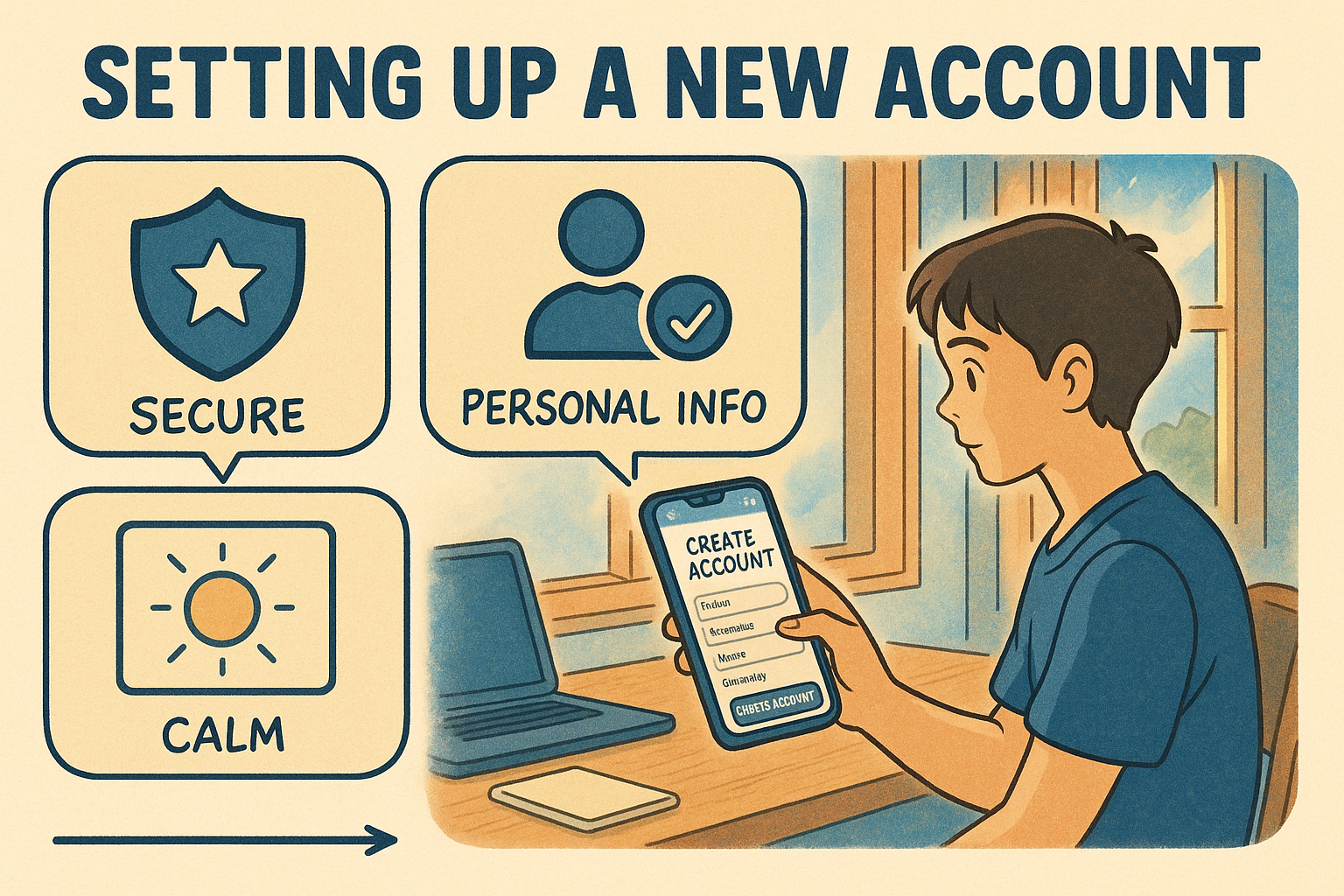
Before you can start exploring colleges or filling out applications, you'll need to set up your account. Don't worry – it's super straightforward.
When you open the app for the first time, tap that "Create Account" button. You'll need to enter an email address – and trust me, use one you actually check regularly since this will be how colleges communicate with you. Then create a password that's secure but something you won't forget (we've all been there with password resets!).
Next, you'll fill in some basic profile info like your name and birthday. The final step is checking your email for a verification link – just click it to activate your account and you're good to go!
Already started your application on the website? No problem at all! You can simply log in with those same credentials on the mobile app. Everything syncs automatically between platforms, so you can seamlessly switch between working on your laptop and your phone depending on where you are and what's convenient. Pretty cool, right?
For international students, take a look at our college application timeline for international students to stay organized on unique deadlines and document requirements.
Understanding the Mobile App Interface
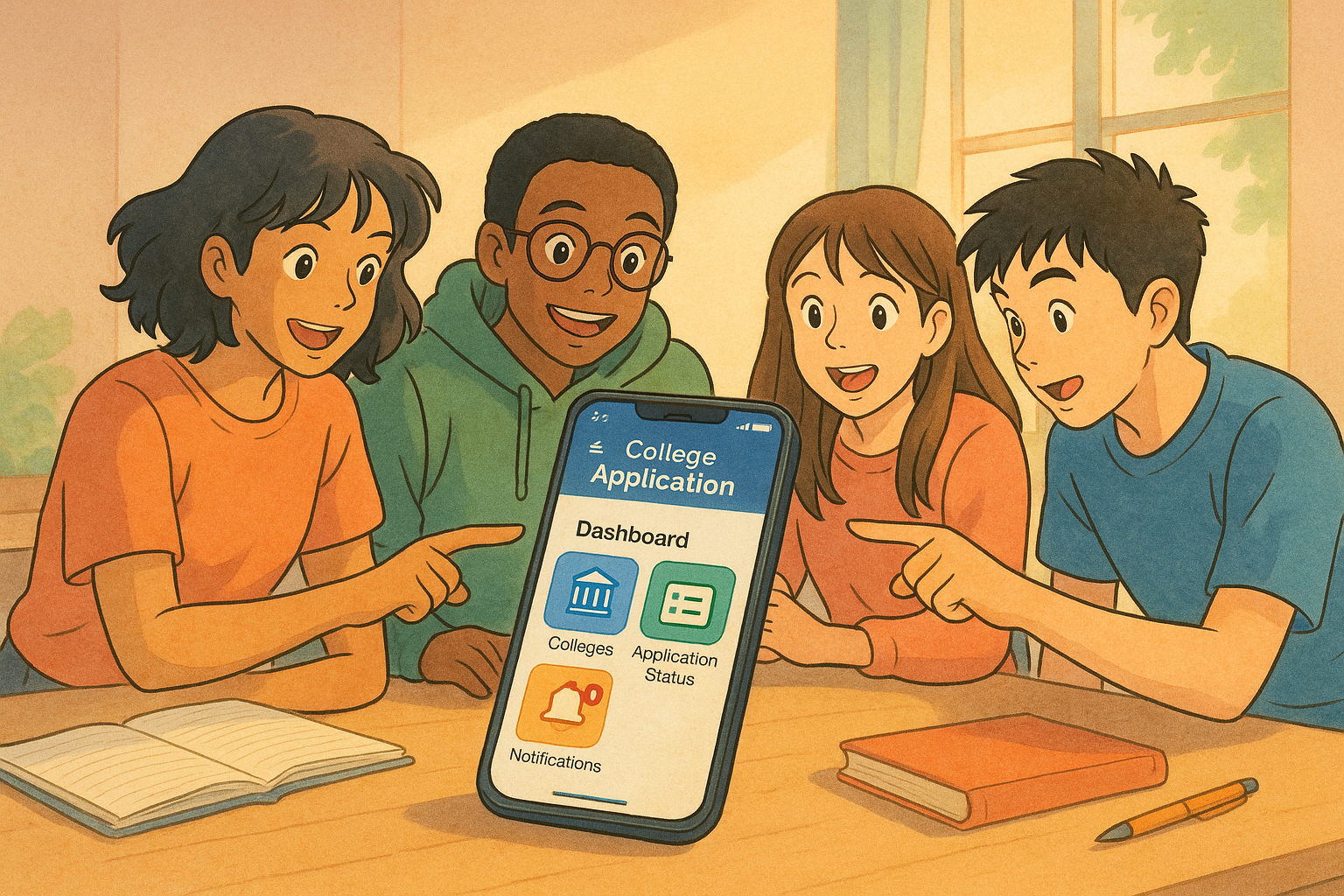
When you first log in, you'll see the Common App dashboard – think of this as your home base throughout the whole application process. The designers have done a great job optimizing everything for smaller screens while keeping all the important features you need.
The dashboard breaks down into several key sections that you'll get to know really well. There's "My Colleges" where you can see and manage your school list, "Application" where you'll access different parts of your application, "Financial Aid Resources" for figuring out how to pay for college (always important!), "College Search" for discovering potential schools, and "Notifications" to keep you updated on deadlines and messages.
You'll notice a handy bottom navigation bar that lets you jump between these sections with just one tap. I really appreciate this design – when you're juggling applications for multiple schools, having everything just a tap away makes the whole process so much more manageable.
Customizing Your Dashboard Experience
One thing I've found super helpful is taking a few minutes to personalize the app experience. You can adjust notification preferences (I recommend keeping deadline alerts turned on!), tweak display settings like text size if you're squinting at your screen, mark favorite sections for quicker access, and view your recent activity to pick up right where you left off.
It might seem like a small thing, but trust me – these little customizations can seriously boost your efficiency, especially when you're racing against application deadlines. I spent about five minutes setting up my preferences when I first downloaded the app, and it saved me hours of frustration later on. Worth it!
Building Your College List
Now for the fun part – discovering and selecting the colleges you'll apply to! If you want help deciding which schools to add and key research strategies, you'll find actionable advice in our guide to the college application process.
Searching for Schools
The college search function in the Common App mobile app is seriously impressive. You can filter schools based on practically anything you care about – location, size, how selective they are, what majors they offer, and even cost or financial aid availability.
Want a medium-sized school in New England that offers marine biology and has a good financial aid program? The app can help you find exactly that! The search results show up in these neat, card-based displays that are super easy to scroll through on your phone screen. Each card gives you a quick snapshot of key info about the school – where it's located, how big it is, and those all-important application deadlines.
I've spent way too many hours just browsing through different schools on the app. It's actually kind of addictive once you get started! And the best part is you can do this anywhere – I've definitely found myself researching colleges while waiting at the dentist or riding the bus.
Adding Schools to Your List
When you find a school that catches your eye, adding it to your list couldn't be easier. Just tap on the school to see more details about campus life, academic programs, and admission requirements. If you like what you see, hit "Add to My Colleges" and confirm your choice when prompted.
You can add up to 20 schools to your list, though most college counselors suggest applying to between 5-10 for a balanced approach. And speaking of balance – try to include a mix of "reach" schools (dream schools that might be a stretch), "target" schools (where your stats match their typical admitted student), and "safety" schools (where you're pretty confident you'll get in).
The app makes it super easy to keep track of your growing list and compare different aspects of each school. I started with about 15 schools on my list and gradually narrowed it down as I learned more about each one. The mobile app was perfect for this process since I could review my list whenever I had a spare moment.
If you're looking for real, successful application examples and what gets students into their dream schools, check out these college admission case studies and application examples.
Completing Your Common App Profile
Your Common App profile is the foundation of all your applications – let's make sure it shines! For help with every section, from academics to recommendations, don't miss the College Application Deadlines Explained for a Successful Admissions Journey.
Personal Information Section
The Personal Information section is basically the foundation of your entire Common App profile. This is the stuff that gets shared with all your schools, so accuracy is super important here.
You'll need to enter your full legal name, address, phone number, and email. There are also some optional demographic questions, info about where you've lived and your citizenship status, what languages you speak, and details about your family members.
What's nice about doing this on the mobile app is that they've broken everything into manageable chunks. You don't have to sit down and complete the whole thing in one marathon session. I actually filled out most of my personal info section while waiting for my younger brother at soccer practice! The app saves your progress automatically, so you can easily complete a subsection, close the app, and pick up right where you left off later.
Education Section
The Education section is where you'll provide all the details about your academic background. You'll enter information about your current high school, your academic history including courses and grades, what you're studying in your senior year, any academic honors you've received, and your future plans regarding college majors and career interests.
One thing I really appreciate about the mobile app is all the helpful tooltips and explanations they provide. When I was entering my courses and grades, I wasn't sure about the format, but the app had these little explanation bubbles that cleared everything up. This is especially helpful for international students whose educational systems might be different from the US standard.
And yes, you can absolutely enter all this information on your phone! The interface is designed to make even detailed academic information entry manageable on a smaller screen.
Testing Section
In the Testing section, you'll report any standardized test scores you want to share with colleges. This includes SAT/ACT scores, AP or IB exam results, TOEFL or IELTS scores for non-native English speakers, and any other standardized tests you've taken.
Here's something worth noting – many colleges have gone test-optional in recent years, especially since the pandemic. The app does a great job of clearly showing which schools on your list require test scores and which don't. This helped me decide whether to include my SAT scores for certain schools where they were optional.
The mobile interface for entering test scores is straightforward – just select the test type, enter the date you took it, and input your scores. You can add multiple test dates if you've taken the same test more than once.
Activities Section
Now for the Activities section – this is where you get to showcase all the cool stuff you do outside the classroom! You can list up to 10 activities, and I'd recommend putting them in order of importance to you.
For each activity, you'll provide details about your role, how much time you committed to it, and what you accomplished. There's a character counter to help you stay within the limits, which is super helpful since being concise is key here. You'll also categorize each activity using dropdown menu options.
The mobile app makes it really easy to add, edit, or reorder your activities with simple drag-and-drop functionality. I actually found this section worked better on mobile than on desktop! I could quickly update my activities list whenever something new came to mind, rather than trying to remember it later when I was at my computer.
Activities Section
| Category | Examples | Tips |
|---|---|---|
| Academic | Math club, Science olympiad | Highlight leadership roles and achievements |
| Arts | Band, Theater, Visual arts | Include performances, exhibitions, or awards |
| Athletics | Team sports, Individual sports | Note varsity status, positions, and records |
| Community Service | Volunteer work, Fundraising | Quantify impact (hours, money raised, people helped) |
| Work | Part-time jobs, Internships | Emphasize skills developed and responsibilities |
| Family Responsibilities | Caring for siblings, Family business | Don't underestimate these - they show character |
| Club/Interest | School clubs, Hobbies | Show progression and increasing responsibility |
Table of Common App activity categories, with examples and tips for maximizing each type.
Crafting Your Common App Essay
Your essay is where your application really comes alive – let's make it count! If you need expert advice and real examples on what works, check our guide to a successful college essay that stands out.
Understanding the Essay Prompts
The Common App essay is your chance to show admissions officers who you really are beyond grades and test scores. For the 2023-2024 application cycle, you've got seven prompts to choose from, and they cover a pretty wide range of topics.
You can write about your background, identity, interest, or talent; lessons from obstacles you've faced; a time you challenged a belief or idea; reflections on gratitude; an accomplishment or event that sparked personal growth; or you can even choose your own topic entirely.
What's cool about the mobile app is that you can access the full text of each prompt anytime, along with helpful tips for approaching each one. This means you can mull over potential essay topics whenever inspiration strikes – maybe while taking a walk or riding the bus. I actually came up with my essay idea while waiting in line at the grocery store and quickly jotted down notes in the app!
For a complete breakdown and expert tips, see our Common App Essay Prompts Expert Guide.
Understanding the Essay Prompts
| Prompt | Focus | Key Consideration |
|---|---|---|
| Background, identity, interest, or talent | Personal story | Choose something meaningful that reveals your character |
| Lessons from obstacles | Overcoming challenges | Emphasize growth and learning, not just the hardship |
| Challenging a belief or idea | Critical thinking | Show thoughtfulness and maturity in your approach |
| Reflection on gratitude | Appreciation | Connect to how this shapes your perspective or actions |
| Personal growth moment | Transformation | Highlight before and after, with specific changes |
| Topic of your choice | Open-ended | Still needs to reveal something important about you |
| Share any essay | Complete freedom | Ensure it still serves the purpose of introducing yourself |
Table outlining the Common App essay prompts for 2023-2024, their focus, and tips for each.
Writing and Editing on Mobile
While many of us might prefer typing long essays on a computer, the Common App mobile app actually offers some surprisingly robust writing and editing features. You can draft directly in the app with auto-saving functionality (a lifesaver!), track your word count as you work toward that 650-word limit, use basic text formatting, copy and paste from other apps, and even catch spelling errors as you type.
For marathon writing sessions, yeah, you might still want to use a computer. But the mobile app is perfect for capturing ideas on the go, making quick edits, or reviewing your essay during downtime. And since everything syncs automatically across devices, any changes you make on your phone will be there when you log in on your computer later.
I found myself using a hybrid approach – brainstorming and making quick edits on my phone, but doing the bulk of my writing on my laptop. The flexibility to switch between devices depending on my situation was incredibly convenient.
Need essay inspiration or want to see real examples that worked? Check out this collection of Common App Essay Examples To Inspire Your College Application Success.
Tips for Essay Success
Want to make the most of the Common App mobile app for essay writing? Here are some strategies that worked for me.
- Use the notes feature to jot down ideas whenever inspiration strikes – seriously, good essay ideas often come at random moments!
- Set up draft paragraphs during short breaks in your day. Those five minutes waiting for class to start can be productive!
- Review your essay during downtime, like when you're waiting for appointments.
- Share drafts with trusted advisors using the app's sharing function.
- And finally, while the mobile app is great for drafting and editing, I'd recommend finalizing and proofreading on a larger screen before submission.
Remember, your essay is your chance to share your authentic voice with admissions officers. The beauty of the mobile app is that you can work on crafting that voice whenever and wherever you have a few spare minutes. I actually wrote one of my best paragraphs while sitting in a coffee shop when my laptop battery died – I just pulled out my phone and kept working!
If you feel stuck and want professional support, our Help With Common App Essay guide connects you with coaches and resources for the best results.
Managing Supplemental Essays
Beyond the main Common App essay, you'll likely need to tackle school-specific supplements – here's how to handle them like a pro. For detailed strategies and real examples of winning supplement responses, see our Supplemental Essay Examples To Inspire Your Best Application.
Accessing SchoolSpecific Questions
Besides the main Common App essay, most colleges require supplemental essays or short-answer questions specific to their school. These are super important because they show why you're interested in that particular college and how you'd fit in there.
Finding these supplemental questions in the app is a breeze. Just tap on "My Colleges" in the bottom menu, select a college from your list, and then tap "Supplemental Questions" or "Writing Supplements." You'll see all the required and optional prompts for that school right there.
One thing I really appreciate is how clearly the app labels which questions are required and which are optional. It also shows word or character limits for each response, so you know exactly what you're working with. This helped me prioritize my time – I focused on required questions with approaching deadlines first, then tackled the optional ones as time allowed.
You can also see how other students handle Brown University's supplements in this Brown Supplemental Essays Guide With Real Examples And Winning Strategies.
Organizing Multiple Supplements
Managing supplemental essays for multiple schools can get overwhelming fast. I was applying to eight schools, and each had between 1-5 supplemental essays. That's a lot to keep track of!
Luckily, the Common App mobile app has some great features to help you stay organized. There are progress indicators that show which supplements you've started or completed, deadline reminders to help you prioritize based on application dates, a notes feature for brainstorming ideas for different prompts, and automatic draft saving so you never lose your work.
I found the app's organization made it possible to work on different supplements in short bursts throughout my day. Waiting 15 minutes for a friend? That's enough time to draft a "Why this college?" paragraph. Riding in the car for 30 minutes? Perfect opportunity to edit that "Describe an activity" essay. These small pockets of productivity really add up!
If you want ideas for schools without supplements, check out the curated list of Colleges Without Supplemental Essays For Stress Free Applications.
Requesting and Managing Recommendations
Strong recommendation letters can make your application shine – here's how to handle them through the app. For tips on recommendation requests, timing, and letters of reference for both college and honors programs, you might want to review our College Application Timeline Guide for a Successful Admissions Journey.
Inviting Recommenders
Letters of recommendation give colleges valuable insights about you from another perspective. The Common App mobile app makes requesting these letters surprisingly simple.
First, you'll need to navigate to the "Recommenders and FERPA" section. You'll complete the FERPA release authorization (this is a one-time step where you decide whether you want to waive your right to see the recommendations). Then you'll add your recommender's information – their name, title, and email address. You can assign recommenders to specific colleges as needed, and send invitation emails directly through the app.
The mobile interface walks you through each step with clear instructions. I actually sent all my recommendation requests while sitting in the school library during a free period! It was so convenient not having to wait until I got home to my computer.
Tracking Recommendation Status
Once you've invited your recommenders, the app helps you keep tabs on where everything stands. There are status indicators showing whether your invitations have been accepted, completion tracking that reveals which letters have been submitted, and reminder options that let you send gentle follow-ups as deadlines get closer.
This tracking feature was a lifesaver during application season! I could quickly check which recommendations were complete and which ones I needed to follow up on. And being able to send reminder emails directly through the app made those potentially awkward "just checking in" messages to teachers much easier to manage.
One tip from my experience – the app makes it easy to track status, but I'd still recommend giving your recommenders plenty of advance notice (at least 3-4 weeks) and sending a polite thank you once they've submitted their letters!
Submitting Your Applications
The moment of truth – submitting your applications with confidence through the mobile app. To make sure you're not missing any crucial step before you press submit, check our Master Your Future with This Essential College Admissions Calendar Guide.
Final Review Process
Before hitting that submit button, you'll want to thoroughly review everything. The Common App mobile app makes this process manageable with a comprehensive pre-submission checklist.
The application dashboard shows completion status for each section, so you can quickly spot any missing pieces. There are error notifications that highlight required information you might have overlooked. You can use the preview function to see your application exactly as admissions officers will see it. And the section-by-section review helps ensure everything is accurate and complete.
I found the mobile interface made this review process less overwhelming by breaking it into clear, actionable steps. You can complete this review anywhere – I actually did my final checks for one application while waiting at the DMV! That said, for my most important schools, I did prefer doing the final review on my laptop's larger screen, just to be extra thorough.
Payment and Submission
When you're ready to submit, the app guides you through the final steps with ease. You'll select the college you're ready to apply to, review the application fee for that school, apply fee waivers if you're eligible (the app provides clear eligibility guidelines), enter your payment information securely within the app, and confirm submission with a final review.
After submission, the app provides confirmation numbers and receipts that are stored within the app for easy reference later. I took screenshots of these confirmations too, just for extra peace of mind!
One thing worth noting – if you're applying to multiple schools, you'll go through this submission process separately for each one. This actually worked out well for me because it let me stagger my submissions based on different deadlines rather than having to finish everything at once.
https://www.sallie.com/colleges/admissions/common-app?utm_source=openai
Tracking Application Status
Once you've submitted your applications, the waiting game begins – but the Common App mobile app helps you stay informed during this period too.
The app provides submission confirmation showing exactly when your application was received, document tracking indicating which materials have been processed, college portal links for access to school-specific status pages, and a notification center that alerts you to any issues requiring attention.
This tracking functionality essentially transforms your phone into a powerful application management tool. I checked my application statuses almost daily (okay, sometimes hourly right after submitting!), and being able to do this quickly from my phone rather than logging into multiple college portals from a computer was incredibly convenient.
Tracking Application Status
| Feature | What It Shows | Why It's Useful |
|---|---|---|
| Submission Confirmation | Date and time application was received | Peace of mind that your application wasn't lost |
| Document Tracking | Status of transcripts, test scores, recommendations | Helps identify missing materials that need follow-up |
| College Portal Links | Direct access to school-specific status pages | Provides more detailed information from individual schools |
| Notification Center | Alerts about issues or missing items | Ensures you don't miss important communications |
| Payment Records | Receipt of application fee payments | Documentation in case of billing questions |
Table summarizing features for tracking Common App application statuses.
Advanced Features of the Common App Mobile App
Beyond the basics, the Common App mobile app offers some powerful features that can take your application experience to the next level.
Offline Functionality
One of my favorite features of the Common App mobile app is its ability to function without a constant internet connection. You can work on your application anywhere – even in that basement classroom with zero bars of service or on a plane without Wi-Fi.
The app offers offline editing that allows you to work on your application without being connected, automatic syncing that updates your changes when your connection is restored, cached college information that remains accessible even without signal, and draft saving that ensures your work is preserved regardless of connectivity.
This offline capability was a game-changer for me. I have a limited data plan, and my high school has notoriously spotty Wi-Fi. Being able to work on my applications during my free period without worrying about connectivity issues saved me tons of time. And when I went on a family road trip through some rural areas with no service, I could still make progress on my essays!
Integration with Other Tools
The Common App mobile app plays nicely with other digital tools you might already be using in your college application process.
There's calendar integration to help you manage application deadlines alongside your other commitments. The document scanning feature lets you digitize physical documents using your phone's camera – super handy for things like activity resumes or additional materials. Cloud storage connections make it easy to upload supporting documents from services like Google Drive or Dropbox. And there are even social media sharing options for celebrating those application milestones (though I'd recommend waiting until after decisions come out to share too much publicly!).
I particularly loved the calendar integration. I added all my application deadlines to my phone's calendar with alerts set for one week and one day before each deadline. This helped me stay on track without having to constantly check the app for upcoming dates.
Looking for more on planning and scheduling? Our College Planning Calendar for High School Students has detailed step-by-step timelines.
Tips for Maximizing the Mobile App Experience
Let's explore some strategies to get the most out of the Common App mobile app throughout your application journey.
Time Management Strategies
The portability of the Common App mobile app creates some unique opportunities for efficient time management that you just don't get with the desktop version.
Try using micro-sessions to complete small tasks during short breaks throughout your day. Five minutes waiting for the bus? Update an activity description. Ten minutes before soccer practice starts? Review a paragraph of your essay. You can also set location-based reminders to prompt you about specific tasks when you're in certain places – like a reminder to work on your "Why this college?" essay when you're at the library.
The app's progress tracking features are perfect for setting daily goals. I aimed to complete at least one small section each day, and watching those completion indicators fill up was surprisingly motivating! The deadline notifications kept me aware of approaching due dates without having to memorize them all. And task batching – grouping similar activities like editing all your activity descriptions at once – can make you more efficient.
By using these strategies, I made steady progress on my applications without needing to set aside huge blocks of time. This approach helped me balance college applications with schoolwork, extracurriculars, and yes, even some social life!
For an in-depth look at managing your entire application journey, check the College Application Timeline Guide for a Successful Admissions Journey.
Security Best Practices
Your Common App contains tons of personal information, so security should definitely be a priority when using the mobile app.
- If your device supports it, enable biometric login (fingerprint or face recognition) for an extra layer of security.
- Use a strong, unique password for your Common App account – not the same one you use for Instagram or other apps!
- Try to avoid using public Wi-Fi when entering sensitive information like payment details.
- If you ever use a shared device, make sure to log out completely when you're done.
- And keep your app updated to ensure you have the latest security patches.
I took security seriously with my Common App account. Beyond using a strong password and fingerprint login, I also made sure to lock my phone with a secure passcode. College applications contain so much personal information – from your address to your family's education history – that it's definitely worth taking these extra precautions.
Troubleshooting Common Issues
Even the best apps sometimes have hiccups – here's how to handle them when they arise. And if you're ever feeling overwhelmed, you're not alone! Explore real Success Stories Of Students Who Overcame Challenges just like you.
Technical Problems and Solutions
Even the best apps occasionally have technical difficulties. Here are solutions to some common problems you might encounter.
If the app freezes or crashes, try force closing it and restarting. This fixes most temporary glitches. Also check for app updates – sometimes bugs get fixed in newer versions. And make sure your device has enough storage space, as low storage can cause performance issues.
For syncing problems, first verify your internet connection is working properly. If that's not the issue, try logging out and logging back in to refresh your session. If problems persist, you might need to contact Common App support.
Payment processing errors can be frustrating when you're trying to submit applications. Double-check all your payment information for typos. If that doesn't work, try an alternative payment method if you have one available. If charges appear on your account but the submission fails, contact your bank and Common App support.
Document upload problems often relate to file size or format. Make sure your files meet the requirements (usually PDF format under a certain size limit). Try compressing large files if needed. If mobile uploads consistently fail, you might need to switch to a desktop for that particular task.
I ran into a syncing issue once where my essay edits weren't showing up across devices. A simple log out and log back in fixed the problem right away. Don't panic if you encounter technical issues – they're usually easily resolved!
Getting Help When Needed
If you run into issues you can't resolve on your own, the Common App offers several support options accessible right through the mobile app.
- The in-app help center provides answers to frequently asked questions and is searchable by keyword.
- There's live chat support available during business hours if you need real-time assistance.
- Email support typically responds within 24-48 hours for less urgent questions.
- Phone support is available for truly urgent issues.
- And sometimes the Common App's social media channels offer alternative ways to get help.
Don't hesitate to reach out if you're stuck – the Common App team understands how important your applications are and they're committed to helping resolve issues quickly. I used the live chat feature once when I couldn't figure out how to update a recommender's email address, and they walked me through the process in just a few minutes. Way faster than trying to figure it out on my own!
The Future of College Applications Mobile Trends
The college application landscape continues to evolve – here's where mobile applications are headed.
Recent Updates and Enhancements
The Common App mobile application keeps getting better, with recent updates focusing on several key areas.
They've improved accessibility features for users with disabilities, which is a huge step toward making college applications more inclusive. Document uploading capabilities have been enhanced, making it easier to submit additional materials right from your phone. The navigation has become more intuitive based on user feedback. They've expanded offline functionality for better performance in all conditions. And they've added integration with additional scholarship opportunities to help with the financial side of college planning.
These ongoing improvements show that the Common App team is listening to students and counselors and actively working to make the college application process as accessible and user-friendly as possible. I've noticed the app getting smoother and more reliable with each update, which is always appreciated when you're dealing with something as important as college applications!
Whats Coming Next
Looking ahead, the Common App has announced some exciting enhancements coming to the mobile experience.
They're working on AI-powered writing assistance to help students craft more effective essays – though your unique voice will still be essential! Virtual campus tour integration is coming directly to college profiles, which will be amazing for exploring schools you can't visit in person. Enhanced financial aid planning tools will help make the cost side of college more transparent. Multilingual support is being developed for non-English speaking applicants. And they're creating post-acceptance decision tools to help compare offers once those exciting admissions letters start arriving.
These upcoming features will make the mobile app even more valuable throughout the entire college journey – from initial exploration through final decision-making. I'm particularly excited about the virtual campus tour integration since visiting every school on your list isn't feasible for most students. Being able to take virtual tours right within the app will make researching colleges so much more immersive!
FAQ Common App Mobile Application
You've got questions about the Common App mobile app – we've got answers! Here are the most common questions students ask about using the app.
- What devices is the Common App mobile app compatible with?
The app works with both iOS and Android devices. For iOS, you'll need iOS 12.0 or later. For Android, you need Android 6.0 or later. It's optimized for both phones and tablets, so you can use whichever screen size you prefer. - Can I start my application on the website and continue on the mobile app?
Absolutely! One of the best features is how seamlessly everything syncs between platforms. You can start working on your laptop, continue on your phone while on the bus, and then switch back to your computer later. All your information updates automatically as long as you're using the same account. - Is it safe to enter my payment information in the mobile app?
Yes, the app uses industry-standard encryption to protect your personal and payment information. It never stores your complete credit card details on your device. The security level is equivalent to using the website, so you can feel confident submitting payment through the app. - Can I submit documents like transcripts through the mobile app?
Yes! The mobile app lets you upload supporting documents including transcripts, resumes, and additional writing samples. You can either upload files stored on your device or use your phone's camera to scan physical documents, which is super convenient. - What happens if I lose internet connection while working on my application?
No worries! The app has robust offline functionality. You can continue working on most sections without an internet connection, and when you reconnect, the app automatically syncs your changes to your account. This feature saved me multiple times when working in areas with spotty service. - How do I know if my application was successfully submitted?
After submission, you'll see an immediate confirmation screen with a submission ID number. You'll also receive a confirmation email, and the status in your application dashboard will update to "Submitted" for that college. Triple confirmation for peace of mind! - Can I make changes after submitting my application to a college?
Once you've submitted to a specific college, you cannot make changes to the submitted materials for that school. However, you can still update your Common App for future submissions to other colleges on your list. This is why that final review before submission is so important! - How can I track which colleges have received my application materials?
The app provides a tracking dashboard showing which materials (application, test scores, recommendations, etc.) have been received by each college. Many colleges also provide direct links to their applicant portals for more detailed status information. - Does the mobile app use a lot of data?
The Common App mobile app is designed to be data-efficient. Most text-based sections use minimal data. You can also download college information for offline browsing to reduce data usage further. I never noticed it making a significant dent in my monthly data allowance. - Can counselors and recommenders use the mobile app too?
Yes! Counselors and recommenders can download the app to manage their tasks. They can view requests, submit recommendations, and track their students' application progress through the mobile interface. My counselor actually mentioned how much she appreciated being able to submit forms from her phone!
Conclusion Embracing the Mobile Application Advantage
The Common App mobile application has truly transformed how students approach college applications. By bringing the entire experience to your smartphone, it turns what used to be a desk-bound chore into something you can manage anywhere, anytime.
This flexibility is a game-changer, especially when you're juggling classes, extracurriculars, part-time jobs, and social life alongside your college applications. Instead of needing to carve out huge blocks of time, you can make progress in small increments throughout your day. This approach often leads to more thoughtful, less rushed applications.
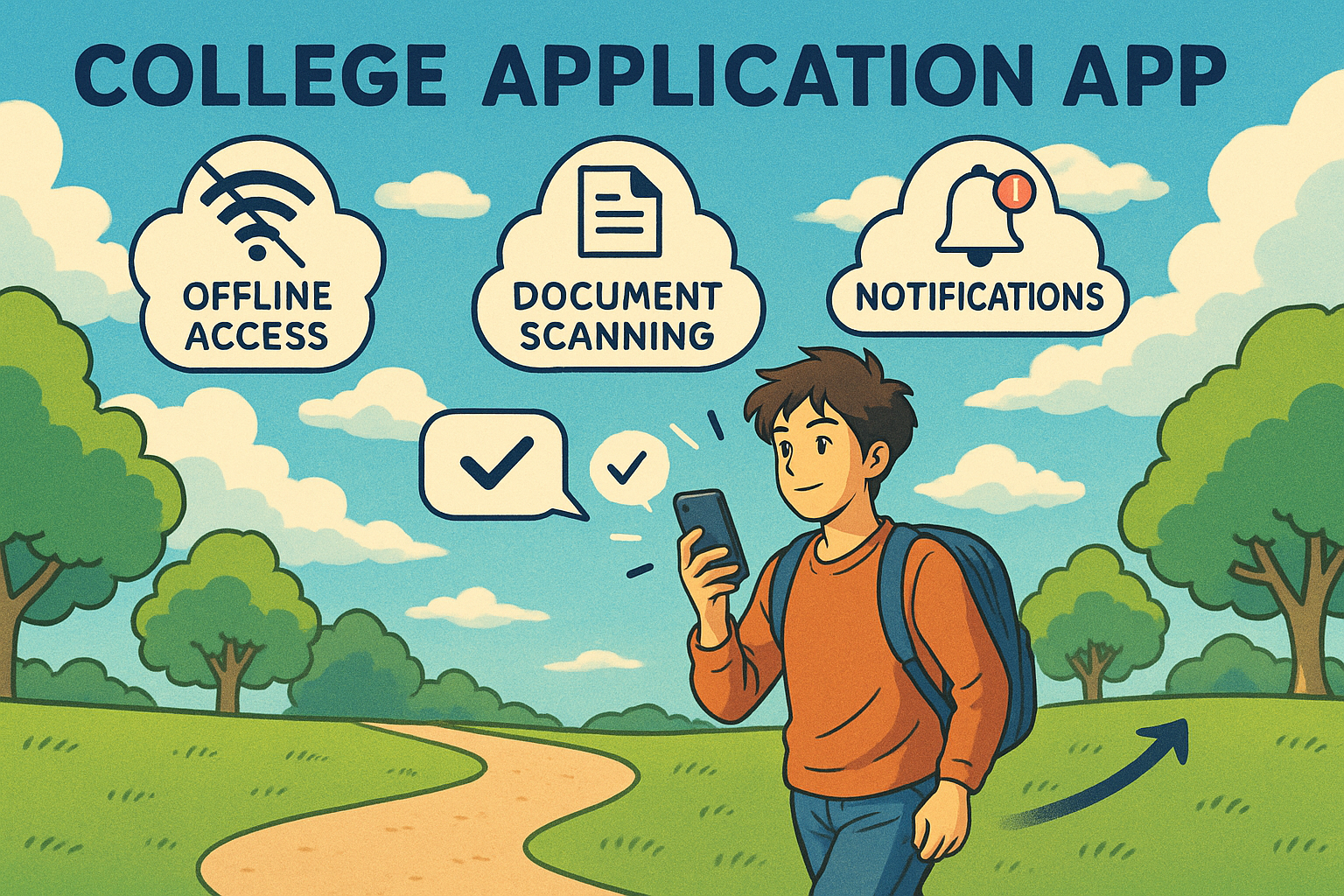
As we've seen throughout this guide, the mobile app offers everything the desktop version does while adding unique advantages like offline access, document scanning, and on-the-go notifications. Your smartphone transforms from a potential distraction into a powerful tool for achieving your college goals.
Whether you're just starting to explore colleges or racing to meet tomorrow's deadline, the Common App mobile app is ready to support your journey every step of the way. So download it today, and put the entire college application process literally in the palm of your hand!
For more common app and admissions resources, visit our Common App Guide or College Application Essays Guide To Writing Compelling Personal Statements.